Performance and accessibility
How speed helps screen reader users, and how late content, motion and lazy loading can hurt them, measured in Chrome with its accessibility mode on.
- 01Measure what a page costs a screen readerTurn on Chrome's accessibility mode, read the accessibility tree, and see what a big page and its updates cost while a screen reader runs.
- 02Keep late content from losing peopleKeep space for late parts, fill them in instead of drawing them again, and wait for a pause before a status message.
- 03Move and hide things kindlyStop motion for visitors who ask for less, and hide content in ways that find-in-page and screen readers can still reach.
Sam listens, Meera reads
Ravi has two friends who shop at Leaf and Kettle. Sam is blind. He uses a screen reader: a program that reads the page out loud. On his Mac, it's VoiceOver. He moves through a page with the keyboard, and the screen reader tells him where he is.
Meera can see the page. But pages that move are hard for her to follow. When the words jump, she loses her line. Finding it again takes effort, and it tires her.
Tonight both open Ravi's Mint tea page. Sam presses Tab once, and lands on the Add to cart button. Meera starts to read about the tea. Then the page's late parts arrive. Here is what Chrome drew at three moments:
Here is what changed for each of them:
// What changed for Meera and Sam on Ravi's Mint tea page// Tops are in px from the top of the screen.const meera = { wordsTopBefore: 330, wordsTopAfter: 442 };const sam = { focusBefore: "Add to cart", focusAfter: "the whole page" }; console.log(`Meera's words moved ${meera.wordsTopAfter - meera.wordsTopBefore} px down.`);console.log(`Sam's focus went from ${sam.focusBefore} to ${sam.focusAfter}.`);- Lines 1 and 2 are comments. A pixel (px) is one dot on the screen.
- Line 3 holds the top of Meera's words, before and after the banner arrived.
- Line 4 holds Sam's focus, before and after the reviews arrived. Focus is the one element that gets his keys. Tab moves it, and his screen reader reads it.
- Line 6 prints
Meera's words moved 112 px down.Line 7 printsSam's focus went from Add to cart to the whole page.
Both problems came from one speed trick. Ravi shows the page as early as he can. Then he fills in the slow parts. That lets the page appear sooner. It also moved Meera's words, and it threw away the button Sam was on. Now his focus is on the whole page, and he has to find his way back.
Ravi has a question. Which speed tricks help Sam and Meera, and which ones hurt them?
A shop restocks its shelves while it's open. One shopper is reading the label on a tin. The shelf slides along, and she has to find the tin again. Another shopper finds his way by touch, with his hand on a tin. A worker swaps the whole shelf. Now his hand is on nothing.
- In real life: Restocking during opening hours
- In JavaScript: Filling in late parts after the page shows
- In real life: The shelf sliding along
- In JavaScript: A layout shift: the words move down the screen
- In real life: A hand resting on one tin
- In JavaScript: Sam's focus on the Add to cart button
- In real life: Swapping the whole shelf
- In JavaScript: Drawing the box and the button again
A fast page helps everyone: less waiting, and less work for the browser. But speed tricks change the page while people use it, or hide part of it. Keep people's place, speak once, stop moving when asked, and keep every word within reach.
The next four sections take one question each:
- What does a big page cost a screen reader?
- What do late parts do to Meera's line and Sam's place?
- Does the page stop moving when Meera asks?
- Can Sam find what isn't on the screen yet?
How the course recorded it
- The browser: Chrome 157, on a screen 412 by 823 px, with the CPU 4 times slower, as in lesson 31.3.
- The screen reader's mode: a second Chrome, started with
--force-renderer-accessibility=screen-reader. The next section explains it. - The pages: the Mint tea page from lesson 30.1, and the 1,000 reviews from lesson 31.3, with a box that finds reviews by their words.
- Several runs: the reviews page was loaded 5 times with the mode off and 5 times with it on, taking turns. The lesson quotes the middle of each number.
Large DOMs and screen readers
A screen reader doesn't look at the screen. It reads a second version of the page, called the accessibility tree. web.dev says the browser takes the DOM and turns it into "a form that is useful to assistive technology". Assistive technology means tools like screen readers.
Each node in the tree is something Sam can meet: a heading, a list item, a button. Each has a role: what kind of thing it is. It has a name: the words the screen reader says. And it has states, like pressed or focused.
A café prints its menu twice: on paper, and in Braille for blind guests. The Braille menu is extra work, so the café only makes it when a guest asks. After that, every time the cook changes a dish, someone fixes both menus.
- In real life: The paper menu
- In JavaScript: The DOM, and what's drawn on the screen
- In real life: The Braille menu
- In JavaScript: The accessibility tree
- In real life: Made only when a guest asks
- In JavaScript: Built only when a screen reader asks
- In real life: Fixing both menus after every change
- In JavaScript: Updating the tree after every change to the page
Chrome builds it only when asked
Most visitors don't use a screen reader, so Chrome doesn't build the tree for them. Chromium's docs say accessibility is "off by default and enabled automatically on-demand" (overview.md). When a screen reader starts asking, Chrome turns it on.
To test without a screen reader, start Chrome with a switch. --force-renderer-accessibility turns accessibility on "instead of enabling it on demand" (accessibility_switches.cc). With no value, or with screen-reader, it turns on the same mode a screen reader gets. Chromium's code calls it the screen reader bundle (lines 351 to 374).
What the tree cost on 1,000 reviews
Chromium's own docs warn that accessibility support "can have a negative impact on performance" (perf.md). How much? Ravi loaded his 1,000 reviews with the mode off and on:
// Ravi's 1,000 reviews, loaded 5 times each. The middle of each number, in ms.const loads = [ { reader: "off", firstPaint: 236, longestTask: 148.1, accessibility: 0 }, { reader: "on", firstPaint: 256, longestTask: 518.2, accessibility: 479.9 },];for (const l of loads) { console.log(`Mode ${l.reader}: first paint ${l.firstPaint} ms, longest task ${l.longestTask} ms, accessibility ${l.accessibility} ms`);}- Line 1 is a comment. A millisecond (ms) is a thousandth of a second.
- Lines 3 and 4 hold three numbers for each mode: the first paint, the load's longest task, and its accessibility work.
- Line 7 prints
Mode off: first paint 236 ms, longest task 148.1 ms, accessibility 0 ms. - Then
Mode on: first paint 256 ms, longest task 518.2 ms, accessibility 479.9 ms.
The first paint barely moved: 256 ms instead of 236 ms. But one task started just before that paint, and ran for 518 ms. Most of it was Chrome building the tree and sending it on.
A long task is any task over 50 ms, as lesson 27.1 showed. Nothing else can run during one. So a key Sam pressed in that half second had to wait. The tree took memory too. Blink, Chrome's rendering engine, kept 17.1 MB for the page instead of 11.5 MB.
And the tree is big. Ravi's page has 12,057 DOM nodes. Its accessibility tree had 17,281. That's 1,000 list items, 1,001 headings and 1,000 buttons. Then come 11,261 nodes for the text itself.
Chromium's docs explain the right half of the picture. The page's renderer process builds the tree. It sends it to Chrome's browser process, which keeps a copy. Screen readers read the copy. After that, only the changes travel (overview.md, lines 290 to 302).
Every change, done twice
The tree follows every change to the page. Ravi's reviews page has a box that finds reviews by their words. Each key hides the reviews that don't match. Here is the part of its script that hides them:
const reviews = [...document.querySelectorAll(".review")];const count = document.querySelector("#count");function filter(word) { let shown = 0; for (const review of reviews) { const match = review.querySelector(".review-text").textContent.toLowerCase().includes(word); review.hidden = !match; if (match) shown++; } return shown;}- Lines 1 and 2 find the reviews and the status line under the box.
- Line 3 starts
filter, which gets the word Sam typed. Line 4 starts the count at 0. - Lines 5 to 9 go through every review. Line 6 checks whether its words include what Sam typed.
- Line 7 hides the review if they don't. Line 8 counts it if they do.
- Line 10 returns the count.
Sam typed lemon, one key a second. Here is what the five keys cost, with the mode off and on:
// Sam types "lemon", one key a second. The middle of 5 rounds each, in ms.const typing = [ { reader: "off", mainThread: 148.1, accessibility: 0, slowestKey: 64 }, { reader: "on", mainThread: 391.3, accessibility: 156, slowestKey: 88 },];for (const t of typing) { console.log(`Mode ${t.reader}: main thread ${t.mainThread} ms, accessibility ${t.accessibility} ms, slowest key ${t.slowestKey} ms`);}- Line 1 is a comment.
- Lines 3 and 4 hold the main thread's work for all five keys, the accessibility part of it, and the slowest key. A key's time runs from the press to the next paint, as INP counts it (lesson 26.1).
- Line 7 prints
Mode off: main thread 148.1 ms, accessibility 0 ms, slowest key 64 ms. - Then
Mode on: main thread 391.3 ms, accessibility 156 ms, slowest key 88 ms.
The same five keys cost the main thread 391 ms instead of 148 ms. 156 ms of it was the tree catching up. Why it matters: everything the page changes, Chrome changes twice for Sam. A page that changes fewer elements is faster for him too.
Inside Blink: updates in batches
Blink doesn't send every small change on its own. After the page has loaded, it waits at least 150 ms between batches of tree updates. While the page is still loading, it waits 350 ms (ax_object_cache_impl.cc, lines 3389 to 3401). Two kinds of update skip the wait: a change to the focused element, and an action the screen reader asked for, like a click (lines 5529 to 5557).
Why it matters: Chrome already groups small changes for Sam. Your page helps most by changing less. Switch the mode off and on, and compare:
- First paint236 ms
- Longest task during the load148.1 ms
- Accessibility work during the load0 ms
- Main thread busy during the load238.5 ms
- Blink's heap after the load11.5 MB
- Typing lemon: main thread148.1 ms
- Typing lemon: accessibility work0 ms
- Typing lemon: slowest key64 ms
Chrome built no accessibility tree, so it did no accessibility work at all.
A short list must say how long it really is
Lesson 31.3 built a virtual list. It keeps the reviews as data, and puts only the ones near the screen in the page. It found that a screen reader saw only those few. So what does Sam hear about each one?
A screen reader can tell Sam each item's place, like "5 of 11". ARIA is the W3C standard of attributes that add accessibility information to HTML. It says the place comes from aria-posinset, and the size of the list from aria-setsize. When every item is in the page, the browser works both out by itself. When only part of the list is there, "this property is needed".
Ravi scrolled his virtual list about 400 reviews down, with and without the two attributes. Then he read Chrome's own tree in chrome://accessibility, which lists each node's place (accessibility_tree_formatter_blink.cc):
// The first review in the page, about 400 reviews down. From Chrome's accessibility tree.const withoutAttributes = { review: "review-393", posInSet: 1, setSize: 11 };const withAttributes = { review: "review-393", posInSet: 393, setSize: 1000 }; for (const item of [withoutAttributes, withAttributes]) { console.log(`${item.review}: ${item.posInSet} of ${item.setSize}`);}- Line 1 is a comment.
- Lines 2 and 3 hold the first review in the page, from each version's tree.
- Line 6 prints
review-393: 1 of 11andreview-393: 393 of 1000.
Without the attributes, Chrome counted the 11 reviews in the page. So review 393 said it was 1 of 11. With them, it said 393 of 1,000. This is the line of lesson 31.3's list that adds them:
`<li class="review" id="review-${r.i + 1}" data-i="${r.i}" aria-posinset="${r.i + 1}" aria-setsize="${reviews.length}">` +Line 1 builds a review's list item. r.i + 1 is the review's number in all 1,000, and reviews.length is 1,000. Step through the reviews in the page:
- review 3931 of 11
- review 3942 of 11
- review 3953 of 11
- review 3964 of 11
- review 3975 of 11
- review 3986 of 11
- review 3997 of 11
- review 4008 of 11
- review 4019 of 11
- review 40210 of 11
- review 40311 of 11
Only 11 reviews are in the page, so Chrome says each one is out of 11.
Why it matters: a smaller page is faster for Sam too. But if you leave items out, tell him how many there are.
Layout shifts and cognitive load
Back to the Mint tea page. Lessons 30.1 to 30.3 measured its jumps with CLS. Here the question is what a jump costs a person.
Cognitive load is the effort your mind spends keeping track. Reading takes some. Finding your line again after a jump takes more. WCAG, the W3C's accessibility guidelines, warns about big changes like this. It says they "can disorient users who are not able to view the entire page simultaneously". One of its examples is "significantly re-arranging the content of a page".
Ravi built three versions of the page. In each, the banner arrives 1.5 seconds after the page's script runs. The reviews arrive at 3 seconds. Sam pressed Tab once, right after the load:
// Three versions of the Mint tea page, after the banner and the reviews arrivedconst versions = [ { version: "no space kept", wordsMoved: 112, focusAfter: "Add to cart", cls: 0.123 }, { version: "space kept", wordsMoved: 0, focusAfter: "Add to cart", cls: 0 }, { version: "drawn again", wordsMoved: 112, focusAfter: "the whole page", cls: 0.097 },];for (const v of versions) { console.log(`${v.version}: words moved ${v.wordsMoved} px, focus on ${v.focusAfter}, CLS ${v.cls}`);}- Line 1 is a comment.
- Lines 3 to 5 hold each version: how far Meera's words moved, where Sam's focus ended up, and the page's CLS.
- Line 8 prints
no space kept: words moved 112 px, focus on Add to cart, CLS 0.123. - Then
space kept: words moved 0 px, focus on Add to cart, CLS 0. - Then
drawn again: words moved 112 px, focus on the whole page, CLS 0.097.
Meera's line
In two of the versions, the banner pushed Meera's words 112 px down. In the second one, Ravi kept the space from the start:
#slot { min-height: 112px; }
#reviews { min-height: 192px; }
Line 1 keeps 112 px for the banner's slot. Line 2 keeps the reviews box tall enough for four reviews. Nothing moved, and CLS was 0. That's the fix lesson 30.3 taught. For Meera, it also means she never has to hunt for her line.
Sam's place is an element
Now the surprise. In the first version, the banner and the reviews pushed the button down too. Yet Sam's focus stayed on it. Focus belongs to an element, not to a spot on the screen. When the element moves, the focus moves with it.
You leave a bookmark in a book. Someone glues new pages in at the front. Your page is further back now, but the bookmark is still in it. Then someone takes the book apart and binds it again with fresh pages. The bookmark falls out, and you start at page one.
- In real life: The bookmark
- In JavaScript: Sam's focus
- In real life: New pages glued in at the front
- In JavaScript: The banner and the reviews pushing the button down
- In real life: Binding the book again with fresh pages
- In JavaScript: Drawing the box and the button again
- In real life: Starting again at page one
- In JavaScript: Focus falls back to the whole page
The third version took the book apart. When the reviews arrived, it drew the reviews box and the button again:
function showReviews(stars, names) { const items = names.map((name) => `<li>${name}</li>`).join(""); document.querySelector("#buy").innerHTML = `<section id="reviews"><h2>Reviews</h2><p id="stars">${stars}</p><ul>${items}</ul></section> <button id="add" type="button">Add to cart</button>`;}- Line 1 starts
showReviews, which gets the stars line and the reviews. - Line 2 turns the reviews into list items.
- Lines 3 and 4 replace everything inside
#buy: the box and the button. The old button leaves the page, with Sam's focus on it.
The new button looks the same, but it's a different element. Focus fell back to the whole page, and Sam had to find the button again. WCAG counts a move of focus as a change of context. Its success criterion 3.2.5, Change on Request, asks that "changes of context are initiated only by user request". The first and second versions fill in the box instead:
function showReviews(stars, names) { document.querySelector("#stars").textContent = stars; const items = names.map((name) => `<li>${name}</li>`).join(""); document.querySelector("#reviews").insertAdjacentHTML("beforeend", `<ul>${items}</ul>`);}- Line 2 changes only the stars line.
- Line 3 turns the reviews into list items.
- Line 4 adds the list at the end of the reviews box. The button is never touched.
Why it matters: when late data arrives, change only the parts that changed. Compare all three versions, frame by frame:
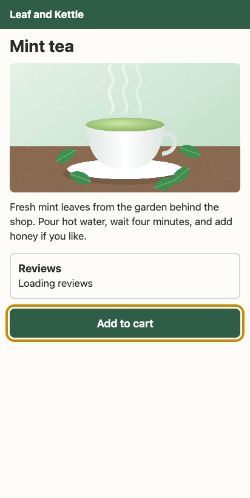
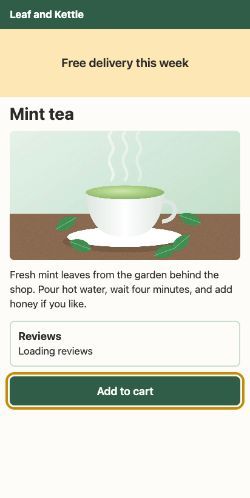
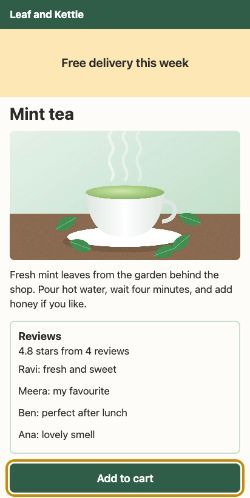
- Meera's words moved112 px
- Add to cart moved256 px
- Sam's focus at the endAdd to cart
- CLS0.123
The banner pushed everything down, and the reviews pushed the button further. It was still the same button, so Sam's focus stayed on it.
Say it once
Under the box that finds reviews, a line says how many are shown. WCAG calls this a status message: a change that reports a result, without moving focus. Its success criterion 4.1.3 asks that a screen reader can announce it "without receiving focus".
Ravi gives the line role="status". That makes it a live region: a part of the page whose changes a screen reader announces by itself. The ARIA spec makes a status line polite. Polite updates wait for "the next graceful opportunity, such as at the end of speaking the current sentence or when the user pauses typing".
The first version changes the line on every key:
document.querySelector("#filter").addEventListener("input", (event) => { const shown = filter(event.target.value.trim().toLowerCase()); count.textContent = `Showing ${shown.toLocaleString("en-US")} of 1,000 reviews`;});- Line 1 listens for every change to the box.
- Line 2 filters the reviews with the word so far.
- Line 3 writes the count into the status line.
The second waits until Sam pauses:
let timer;document.querySelector("#filter").addEventListener("input", (event) => { const shown = filter(event.target.value.trim().toLowerCase()); clearTimeout(timer); timer = setTimeout(() => { count.textContent = `Showing ${shown.toLocaleString("en-US")} of 1,000 reviews`; }, 500);});- Line 1 makes a place for a timer.
- Line 3 still filters on every key, so the list keeps up.
- Line 4 cancels the update the last key planned.
- Lines 5 to 7 plan a new one, 500 ms from now. If another key comes first, line 4 cancels it again.
Ravi typed lemon into each, 150 ms between keys. He recorded what Chrome told the Mac with chrome://accessibility's event recorder:
// Sam types "lemon" quickly. What Chrome told the Mac about the status line.const versions = [ { version: "every key", changes: 5, liveRegionEvents: 5 }, { version: "after a pause", changes: 1, liveRegionEvents: 1 },];for (const v of versions) { const word = v.liveRegionEvents === 1 ? "event" : "events"; console.log(`${v.version}: ${v.liveRegionEvents} live region ${word}`);}- Lines 3 and 4 hold each version's changes to the line, and the
AXLiveRegionChangedevents Chrome sent. On a Mac, that's the event Chrome sends when a live region changes. - Line 8 prints
every key: 5 live region eventsandafter a pause: 1 live region event.
The first version told Sam 5 times. The last 3 times, it said the same thing: "Showing 125 of 1,000 reviews". The second told him once, with the answer he wanted. It's like a train guard who calls out the next station once, instead of every signal the train passes.
ARIA has one more tool. aria-busy="true" says a region is being changed. The spec says a screen reader may then wait, and read all the changes as one update when it turns false.
- Change 1, at 39 msShowing 625 of 1,000 reviews
- Change 2, at 219 msShowing 375 of 1,000 reviews
- Change 3, at 403 msShowing 125 of 1,000 reviews
- Change 4, at 584 msShowing 125 of 1,000 reviews
- Change 5, at 749 msShowing 125 of 1,000 reviews
- AXLiveRegionChanged events5
Each key changed the line, and Chrome told the system each time. Three of the five said the same thing.
Why it matters: every message costs Sam attention, and costs Chrome work. Say each thing once.
Reduced motion
Meera has turned on her phone's setting for less motion. Lesson 32.3 showed how a page reads it: the prefers-reduced-motion media feature. Media Queries 5, the spec that defines it, explains its reduce value. It asks for less of the motion that can "trigger discomfort for those with vestibular motion sensitivity, or distraction for those with attention deficits".
The vestibular system is the inner ear's sense of balance. For some people, moving parts cause real discomfort. For Meera, they pull her eyes away from the words.
Ravi's Mint tea page has three moving things. Steam rises from the cup. A ticker of news slides under the header. And the photo slowly zooms in and out. Here are his CSS rules:
@media (prefers-reduced-motion: no-preference) {
  .steam i { animation: rise 2s ease-in infinite; }
}
.ticker span { animation: slide 12s linear infinite; }- Lines 1 to 3 start the steam, but only for visitors with no wish for less motion.
- Line 4 slides the ticker, for everyone.
const photo = document.querySelector("#photo");
function zoom(time) {
  photo.style.transform = `scale(${1.05 + 0.05 * Math.sin(time / 1000)})`;
  requestAnimationFrame(zoom);
}
requestAnimationFrame(zoom);- Line 1 finds the photo.
- Lines 2 to 5 make one step of the zoom, then ask for the next frame.
- Line 6 starts it. Nothing here checks Meera's setting.
The course loaded the page with both settings. DevTools' Emulation.setEmulatedMedia told Chrome which one to report, as in lesson 32.3:
// Meera asks for less motion. What still moved in 2 seconds, and the frames Chrome drew.const pages = [ { page: "Ravi's first page", stillMoving: ["the ticker", "the photo's zoom"], frames: 146 }, { page: "the fixed page", stillMoving: [], frames: 0 },];for (const p of pages) { console.log(`${p.page}: ${p.stillMoving.join(", ") || "nothing"} moving, ${p.frames} frames`);}- Line 1 is a comment.
- Lines 3 and 4 hold what still moved with reduce, and how many frames Chrome showed in 2 seconds.
- Line 7 prints
Ravi's first page: the ticker, the photo's zoom moving, 146 framesandthe fixed page: nothing moving, 0 frames.
The setting didn't stop anything by itself. Only the steam asked about it, so only the steam stopped. The ticker and the zoom kept going, and Chrome kept drawing frames: 146 in two seconds. With no wish for less motion, it was 148. For Meera, the page was almost as busy as for anyone.
A shop window has a spinning stand, a sliding sign and blinking lights. A customer asks the staff to switch it off while she looks. They switch off the lights. The stand and the sign keep moving, and the window still uses power all day.
- In real life: The customer's request
- In JavaScript: prefers-reduced-motion: reduce
- In real life: The lights, switched off
- In JavaScript: The steam, inside the media query
- In real life: The stand and the sign, still moving
- In JavaScript: The ticker and the zoom, which never checked
- In real life: The power the window still uses
- In JavaScript: The frames Chrome kept drawing
What WCAG asks
- Success criterion 2.2.2, Pause, Stop, Hide (level A), covers moving content that starts by itself and runs next to other content. The ticker is one. There must be a way to pause, stop or hide it.
- Success criterion 2.3.3, Animation from Interactions (level AAA), says "motion animation triggered by interaction can be disabled".
The fixed page
@media (prefers-reduced-motion: no-preference) { .steam i { animation: rise 2s ease-in infinite; } .ticker span { animation: slide 12s linear infinite; }}.ticker.paused span { animation-play-state: paused; }- Lines 1 to 4 start the steam and the ticker only when there's no wish for less motion.
- Line 5 lets a Pause button stop the ticker for everyone else, as 2.2.2 asks.
const photo = document.querySelector("#photo");const lessMotion = matchMedia("(prefers-reduced-motion: reduce)");let frame = 0;function zoom(time) { photo.style.transform = `scale(${1.05 + 0.05 * Math.sin(time / 1000)})`; frame = requestAnimationFrame(zoom);}function start() { cancelAnimationFrame(frame); photo.style.transform = ""; if (!lessMotion.matches) frame = requestAnimationFrame(zoom);}lessMotion.addEventListener("change", start);start();- Line 2 asks the same question as the CSS, from JavaScript.
- Lines 4 to 7 are the zoom, which now keeps its frame number.
- Lines 8 to 12 stop any zoom, reset the photo, and start again only without a wish for less motion.
- Line 13 runs
startagain whenever Meera changes her setting. Line 14 runs it once now.
With reduce, nothing moved on the fixed page. Chrome showed 0 new frames in two seconds. The main thread was busy for 2 ms, against 134 ms on the first page. So less motion was also less work. And lesson 32.3 made one more point: less motion doesn't have to mean none. A short fade can still show what changed.
- Still movingthe ticker, the photo's zoom
- Frames Chrome presented in 2 seconds146
- requestAnimationFrame callbacks121
- Main thread busy134.3 ms
- Your browser's setting, livecan't tell
The visitor asked for less motion, but these parts never checked.
Lazy loading and find-in-page
Sam doesn't scroll through 1,000 reviews to find one. He searches with find-in-page: Ctrl+F, or Cmd+F on a Mac. And his screen reader can only read what's in the accessibility tree.
Only review 900 mentions Marrakesh. Sam wants that review. Ravi built four pages. In each, reviews 11 to 1,000 wait in a different way:
- Added as Sam scrolls: the page starts with 10 reviews. A script adds ten more whenever the end of the list comes near the screen. Until then, they're only data in the script. Waiting to load something until it's needed is called lazy loading.
hidden: they're in the page, behind a Show 990 more reviews button.hidden="until-found": the same, but hidden in a way the HTML spec keeps "accessible to find-in-page and fragment navigation". A fragment navigation is a jump to an id, like#review-900.content-visibility: auto: every review is shown, but Chrome skips drawing the ones far from the screen, as in lesson 31.3.
The course searched each page with window.find(), and read its accessibility tree:
// Where is "Marrakesh", in review 900? Four ways to hold back reviews 11 to 1,000.const ways = [ { way: "added as Sam scrolls", findFound: false, inTree: false }, { way: "behind Show more", findFound: false, inTree: false }, { way: "hidden until found", findFound: true, inTree: false }, { way: "content-visibility", findFound: true, inTree: true },];for (const w of ways) { console.log(`${w.way}: find ${w.findFound ? "found it" : "missed it"}, screen reader ${w.inTree ? "can read it" : "can't read it"}`);}- Line 1 is a comment.
- Lines 3 to 6 hold each way: whether find found the word, and whether the tree had it.
- Line 9 prints
added as Sam scrolls: find missed it, screen reader can't read itandbehind Show more: find missed it, screen reader can't read it. - Then
hidden until found: find found it, screen reader can't read itandcontent-visibility: find found it, screen reader can read it.
A library has more books than shelf space. Some are still at the printer, so no catalogue lists them. Some are locked in a cupboard, with no card in the catalogue. Some are in the closed stacks: the catalogue lists them, and a librarian fetches one when you ask. The rest are on open shelves, in an aisle whose lights come on when you walk in.
- In real life: Books still at the printer
- In JavaScript: Reviews added as Sam scrolls
- In real life: Books locked in a cupboard, with no card
- In JavaScript: Reviews behind hidden
- In real life: The closed stacks: listed, and fetched when asked
- In JavaScript: Reviews behind hidden="until-found"
- In real life: Open shelves in an aisle with the lights off
- In JavaScript: Reviews with content-visibility: auto
Read each row across. It says who can reach the held-back reviews: find-in-page, a screen reader reading the tree, and a link.
| How the reviews wait | What find-in-page does | Can a screen reader read them? | What a link to #review-900 does |
|---|---|---|---|
| Added by a script as Sam scrolls | Misses them: they aren't in the page yet. | Can't: they aren't in the tree. | Does nothing: there's no review 900 yet. |
hidden, behind a Show more button | Misses them. | Can't: they aren't in the tree. | Does nothing: the review stays hidden. |
hidden="until-found", behind the same button | Finds them, and Chrome's Ctrl+F opens the list. | Can't, until the list opens. | Opens the list and shows the review. |
content-visibility: auto on every review | Finds them. | Reads them: they're in the tree. | Shows the review. |
Hidden until found
The until-found page is the interesting one. Here is its list:
<button id="show" type="button" aria-expanded="false" aria-controls="later">Show 990 more reviews</button><ul id="later" hidden="until-found"> <li class="review" id="review-11">…</li></ul>- Line 1 is the Show more button.
aria-expanded="false"tells a screen reader the list is closed.aria-controlsnames the list it opens. - Line 2 starts the list, hidden until found. Line 3 stands for the 990 reviews in it.
The course followed a link to #review-900. Chrome fired 1 beforematch event at the list, removed its hidden attribute, and scrolled review 900 to the top. That's the HTML spec's ancestor revealing algorithm. Chrome's Ctrl+F runs the same reveal for the match it shows (text_finder.cc, lines 96 to 112).
Sam's screen reader is the catch. The HTML spec says browsers hide until-found content with content-visibility: hidden. The CSS Containment spec says that content is left out of the accessibility tree, "similar to how display: none elements are omitted". The recording agrees: the tree had no Marrakesh until the list opened. So Sam needs the button. And the button must follow along when Chrome opens the list:
const later = document.querySelector("#later");const show = document.querySelector("#show");function reveal() { later.hidden = false; show.setAttribute("aria-expanded", "true"); show.hidden = true;}show.addEventListener("click", reveal);later.addEventListener("beforematch", reveal);- Lines 1 and 2 find the list and the button.
- Lines 3 to 7 open the list, say so on the button, and hide the button.
- Line 8 runs it when Sam presses the button.
- Line 9 runs it when Chrome opens the list for find or a link.
beforematchcomes just before Chrome removeshidden, so the button and the list agree.
Inside Chrome: one search, two doors
window.find() isn't a standard: MDN marks it non-standard. But in Chrome it's a handy test. Before it searches, it lets Chrome style and lay out skipped content (local_dom_window.cc, lines 1655 to 1681). Then it searches with FindBuffer, the same code Ctrl+F searches with (find_task_controller.cc, line 128). FindBuffer skips locked content unless it can be opened for find-in-page (find_buffer.cc, lines 67 to 108). Content skipped by content-visibility: auto can be, and so can until-found content. Plain hidden is display: none, which has nothing to search.
One difference: window.find() found the until-found review, but fired 0 beforematch events. So it didn't open the list. Only Ctrl+F and links do.
Lazy pictures keep their words
Lazy loading isn't always a problem. The HTML spec's loading="lazy" is "used to defer fetching a resource until some conditions are met". On the content-visibility page, review 900 has a photo with loading="lazy". Its img element is in the page from the start, with its alt text. The tree had it: "A glass of mint tea on a night train". And the server never got a request for the photo.
Why it matters: lazy pictures keep their words, so Sam loses nothing. Lazy text is different. Words that aren't in the page can't be found. Give people a search, or keep the words in the page with until-found or content-visibility.
- Reviews in the page at first10
- window.find("Marrakesh") found itno
- The accessibility tree had itno
- A link to #review-900 showed itno
- beforematch events0
Nothing reaches it until a script or a button puts it on screen.
Speed trick or trap?
Each card is a speed trick from this lesson or the ones before it. Does it keep everyone with you, or does it need a fix first?
content-visibility: autoon each review- A virtual list with no
aria-setsizeoraria-posinset - A late banner that drops into space kept for it
- Drawing the reviews box and the button again when the reviews arrive
- A status line that changes on every key
- Steam that only rises under
prefers-reduced-motion: no-preference - A
requestAnimationFramezoom that never checks the setting - Reviews added by a script as the reader scrolls
hidden="until-found", with a Show more button that listens forbeforematchloading="lazy"on review photos with goodalttext
Sort each speed trick by whether it keeps Sam and Meera with you.
Common mix-ups
- "Chrome keeps an accessibility tree for every page." No. It builds one when a screen reader asks. With the mode off, the recording found no accessibility work at all.
- "Speed doesn't matter to a screen reader user." No. With the mode on, the reviews page had one task of 518 ms, and every key cost more.
- "Focus stays at a spot on the screen." No. Focus belongs to an element. The button moved down, and focus moved with it. Only drawing the button again lost it.
- "A status line should say every change." No. Five keys made 5 announcements. Waiting for a pause made one, with the same answer.
- "prefers-reduced-motion stops animations by itself." No. Only motion that checks it stops. Ravi's ticker and zoom kept going.
- "Anything hidden is out of reach of find-in-page." No.
hidden="until-found"andcontent-visibility: autostay findable. Plainhiddenand text that isn't loaded yet don't.
Practice exercises
Answer first, then use the hints.
A virtual list has reviews 397 to 405 in the page, and no ARIA attributes. What does Chrome say about review 399?
// Without the two attributes, Chrome counts only the reviews in the page.
const inPage = [397, 398, 399, 400, 401, 402, 403, 404, 405];
const review = 399;
console.log(`${inPage.indexOf(review) + 1} of ${inPage.length}`);3 of 9. Without aria-posinset and aria-setsize, Chrome counts the items it can see, so review 399 sounds like the third of nine.
Sam types two short words with a pause between them. How many times does the batched status line change?
// When Sam pressed each key, in ms. The status line waits 500 ms after the last key.
const keys = [0, 150, 300, 1000, 1150];
let updates = 0;
for (let i = 0; i < keys.length; i++) {
  const next = keys[i + 1] ?? Infinity;
  if (next - keys[i] >= 500) updates++;
}
console.log(updates);2. Sam paused once in the middle, and once at the end. Each pause let one update through.
This rule slides the ticker for everyone. Which media query should wrap it?
.ticker span {
  animation: slide 12s linear infinite;
}@media (prefers-reduced-motion: no-preference) {
.ticker span {
animation: slide 12s linear infinite;
}
}@media (prefers-reduced-motion: no-preference). The ticker then only starts for visitors who haven't asked for less motion.
In the version with no space kept, how far down did the Add to cart button move, in px?
256 px: 112 for the banner, and the rest for the reviews box. Sam's focus stayed on it the whole way.
Open Ravi's reviews page in Chrome. In DevTools' Accessibility tab, select the status line. What does Computed Properties show for Atomic?
true. role="status" makes the line atomic, so a screen reader reads the whole line, not just the part that changed: "Showing 125 of 1,000 reviews", not "125".
WCAG's Pause, Stop, Hide doesn't cover short motion. For how many seconds may moving content run before it needs a pause button?
Five seconds. A pause, stop or hide control is needed for motion that starts by itself, lasts more than five seconds, and runs next to other content. The ticker runs for ever, so it needs one.
Check your understanding
For each question, ask: what did the change do to Sam's place, to Meera's line, and to the work Chrome had to do?
Question 1 of 7Sam types five letters quickly, 150 ms apart. How many times does the status line change if it waits 500 ms after the last key?
Read the code, then predictconst keys = [0, 150, 300, 450, 600]; let updates = 0; for (let i = 0; i < keys.length; i++) { const next = keys[i + 1] ?? Infinity; if (next - keys[i] >= 500) updates++; } console.log(updates);Choose an answer to see the explanation.
Question 2 of 7When does Chrome build the accessibility tree for a page?
Choose an answer to see the explanation.
Question 3 of 7Why did Sam lose his place in the version that drew the reviews box again?
Choose an answer to see the explanation.
Question 4 of 7A virtual list shows reviews 393 to 403, with no aria-setsize or aria-posinset. What does Chrome's tree say about review 397?
Choose an answer to see the explanation.
Question 5 of 7Meera asks her system for less motion. On Ravi's first motion page, what stopped?
Choose an answer to see the explanation.
Question 6 of 7Which way of holding back reviews lets find-in-page reach them, but keeps them out of the accessibility tree until they're revealed?
Choose an answer to see the explanation.
Question 7 of 7What does loading="lazy" on review 900's photo change for Sam's screen reader?
Choose an answer to see the explanation.
Key takeaways
- Chrome builds the accessibility tree only when a screen reader asks. Then every element and every change costs work twice.
- On 1,000 reviews, the tree had 17,281 nodes. Building it took one 518 ms task, and the five keys of a word cost 391 ms instead of 148 ms.
- A virtual list needs aria-posinset and aria-setsize, or each item claims a place in a short list.
- Keep space for late parts, and fill them in. Drawing an element again throws away the focus on it.
- Put status messages in a role="status" line, and update it once the person pauses.
- prefers-reduced-motion stops only motion that checks it. Check it in CSS and in JavaScript.
- Lazy pictures keep their alt text. Lazy text is out of reach. hidden="until-found" and content-visibility keep words findable.
Remember the one-liner.
Make it fast without moving people's place, talking over them, moving when asked not to, or hiding words they need to find.
Sources
The facts on this page come from these specs, docs and source files:
- Introduction to the accessibility tree, web.dev.
- Chromium accessibility overview: off by default, on demand, Chromium docs.
- accessibility_switches.cc: --force-renderer-accessibility, Chromium source.
- browser_accessibility_state_impl.cc: the screen reader bundle, Chromium source.
- Accessibility performance measurements, Chromium docs.
- Chromium accessibility overview: a copy in the browser process, Chromium docs.
- ax_object_cache_impl.cc: how often Blink sends tree updates, Chromium source.
- ax_object_cache_impl.cc: updates sent at once, Chromium source.
- Accessible Rich Internet Applications (WAI-ARIA) 1.2, W3C.
- accessibility_tree_formatter_blink.cc: what chrome://accessibility prints, Chromium source.
- Web Content Accessibility Guidelines (WCAG) 2.2, W3C.
- Media Queries Level 5: prefers-reduced-motion, W3C.
- HTML: the hidden attribute, WHATWG.
- CSS Containment Module Level 2: content-visibility, W3C.
- text_finder.cc: find-in-page reveals hidden matches, Chromium source.
- Window: find() method, MDN.
- local_dom_window.cc: window.find(), Chromium source.
- find_task_controller.cc: Ctrl+F searches with FindBuffer, Chromium source.
- find_buffer.cc: what a search skips, Chromium source.
- HTML: lazy loading attributes, WHATWG.
- Accessibility features reference, Chrome for Developers.
Coming next: Performance and sustainability. How to estimate a page's energy and carbon cost, and how much of that work overlaps with making it fast.